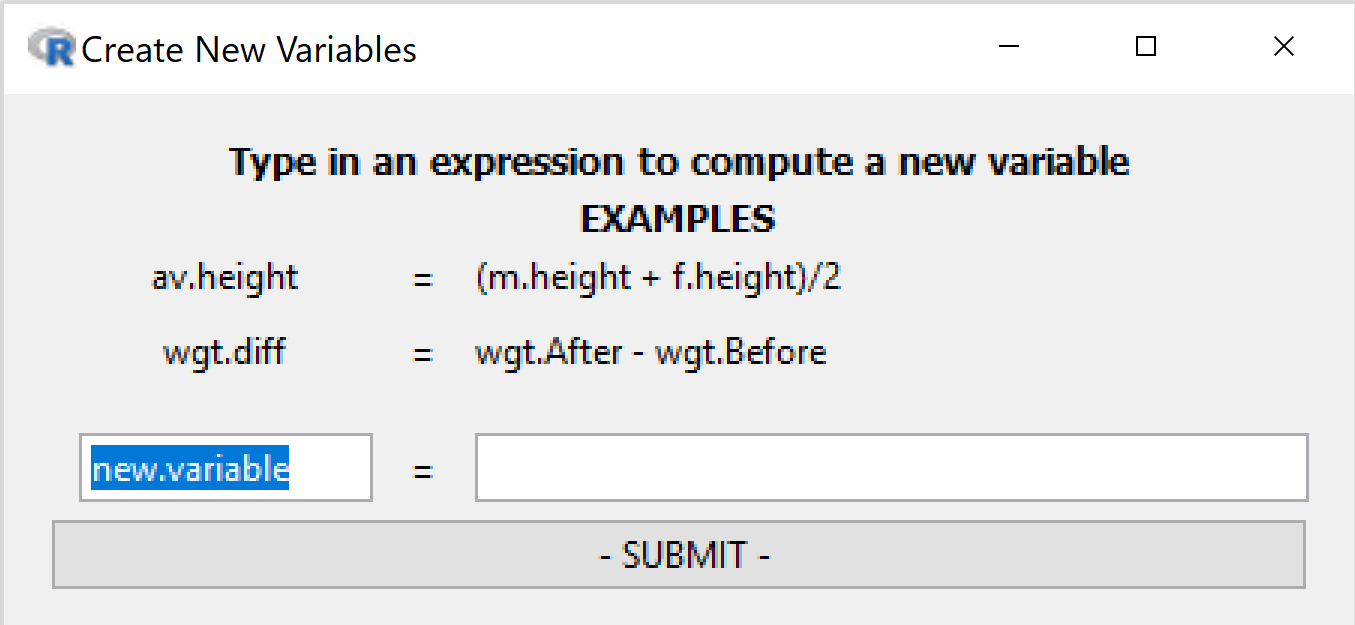
Create new variables from existing variables by doing arithmetic on them.
Type the desired variable name in the left-hand box and any valid R expression in the right-hand box. The expression can use existing variable names, arithmetic operators, and R functions.
Examples:
income = hours * payrate
weight.diff = end.weight - begin.weight
average.weight = (begin.weight + end.weight) / 2
bmi = weight / height^2
The new variable name is automatically converted to a valid name if needed (e.g., spaces replaced with dots).
Build expressions using the interactive calculator interface:
Select a column from the dropdown to add a variable to the expression
Select an operation (+, -, *, /, ^, (, ), :) to combine variables
Use the number pad to enter numeric constants
Give the new variable a name in the text field
Click Create Variable to add the result to the dataset
The expression is shown in the preview area as you build it. Use the del button to remove the last item from the expression.
You can also add a column by pasting raw values directly. Go to Manipulate Variables > Add Columns.
Type or paste values into the text area — either comma-separated on a single line, or one value per line (preferred, especially if values contain commas)
Check Numeric input if the values are numbers (otherwise they are added as categorical)
Click Add as column to append the new column to the dataset
If the list of values is shorter than the number of rows, it is recycled (repeated) to fill the column. If it is longer, it is truncated.